Open the Remote Access Panel (Utility Belt)
-
The Remote Access panel can be opened by clicking on the Asset
Remote Access button on the Asset Details
pane.
Figure 1. 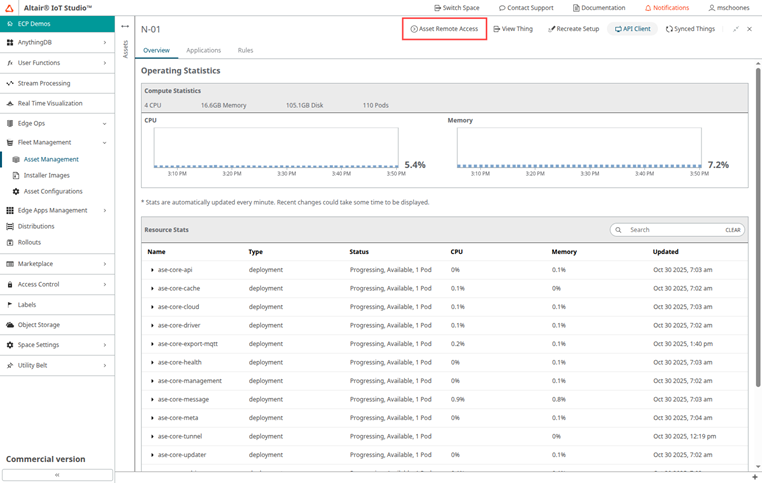
The Utility Belt opens, enabling you to access the features while navigating the space. -
Click Connect to establish the connection to the asset.
Figure 2. 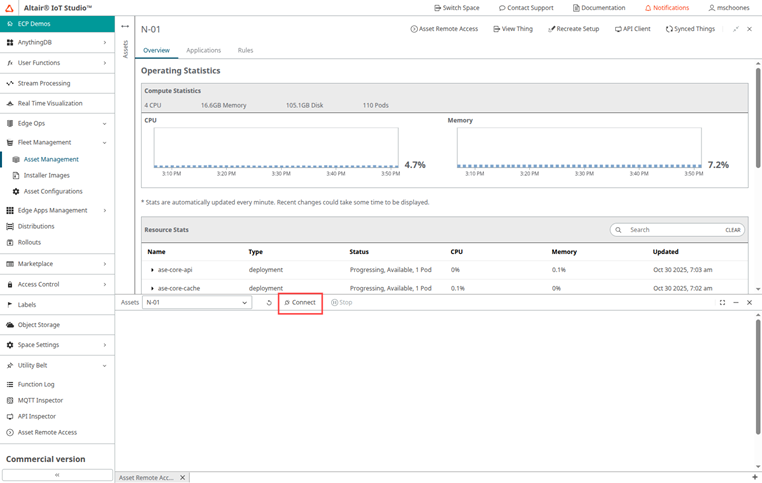
Connection information is displayed on the right, with a terminal connection initialized on the left.
Figure 3. 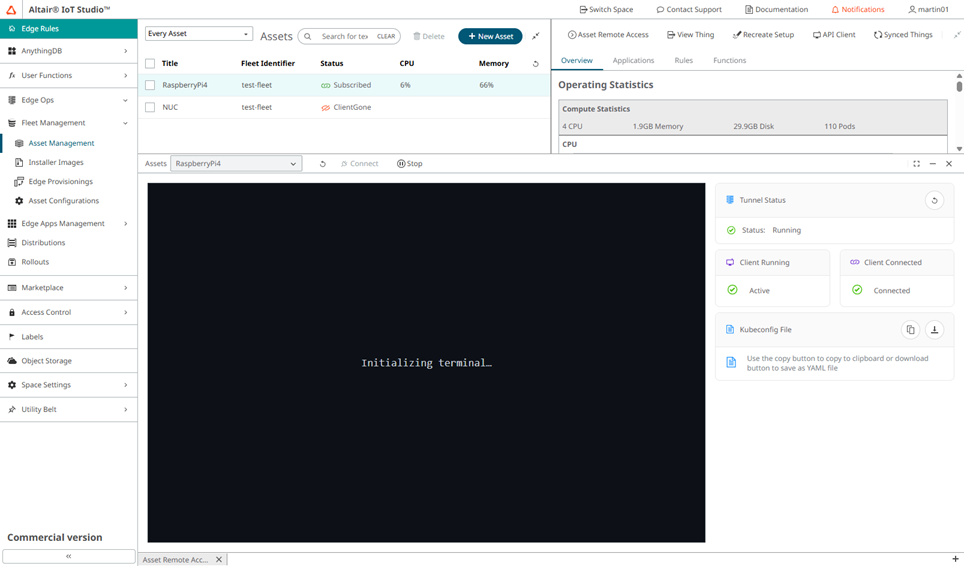
Note: If there is a connection error and a "Please Try Again" message is displayed, click Refresh to attempt the reconnection.Figure 4. 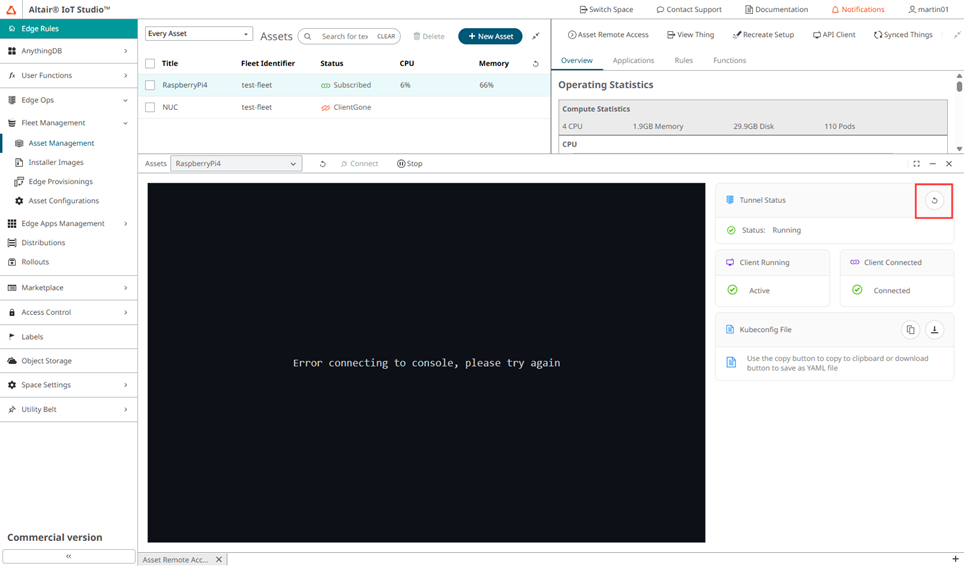
-
With the connection established, the terminal is open and kubectl commands can
be entered. You can also use the kubeconfig file with any appropriate
application (for example, OpenLens) to interact with the edge asset while the
terminal connection is established. The kubeconfig file can be copied to the
clipboard or downloaded by using the
 or
or  buttons, respectively.
Figure 5. 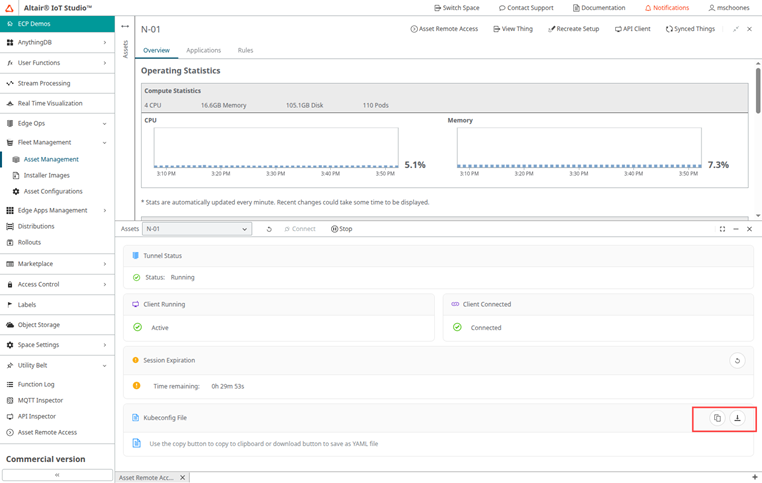
It is also possible to run K9s in the terminal; simply type k9s and press Enter.
Figure 6. 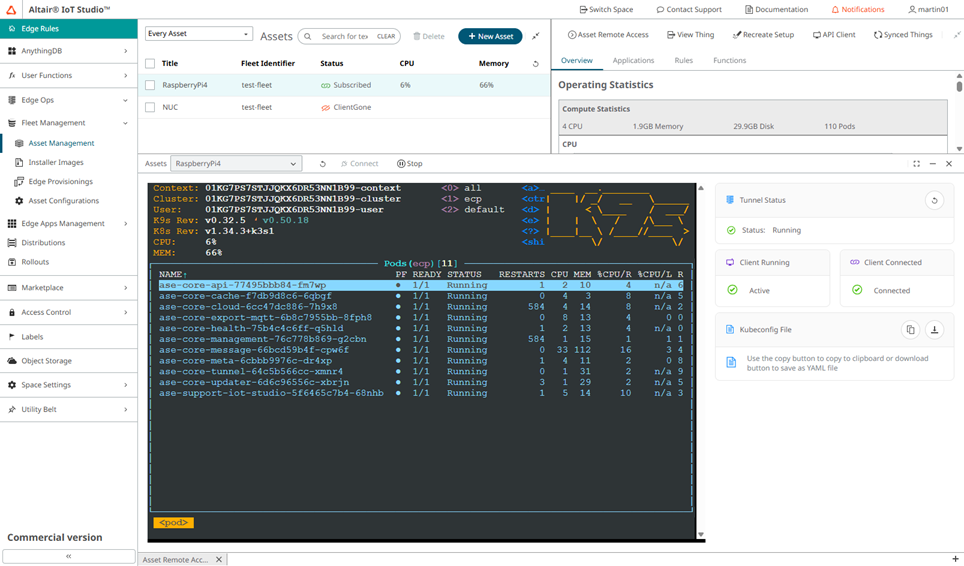
-
When finished with the remote access, close the connection by clicking
Stop.
Figure 7. 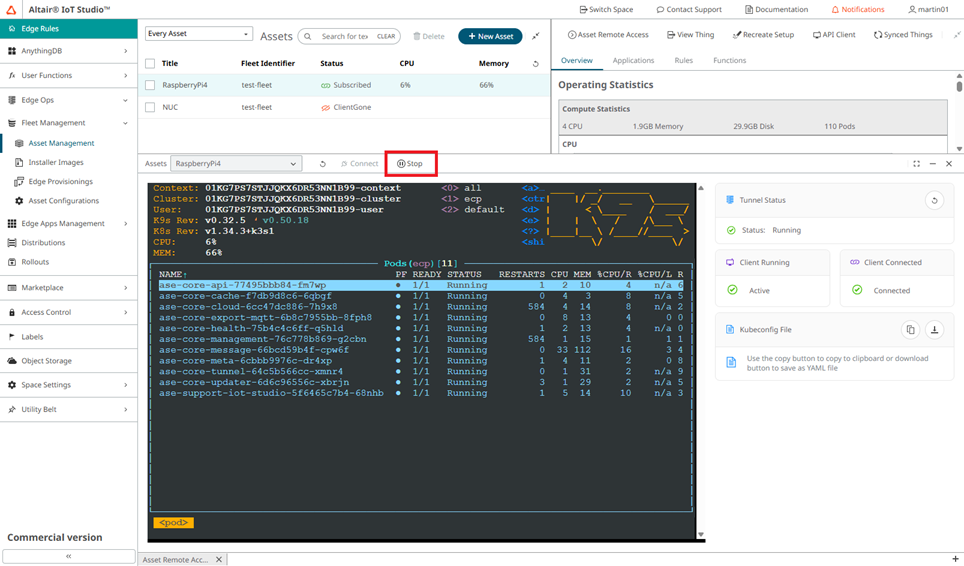
The tunnel status changes to disconnected.Figure 8. 
It is possible to have multiple browser sessions with terminal access to the same edge asset (for example, two different users on different computers). When one if these users clicks on the Stop button, the connection will be closed for all sessions.
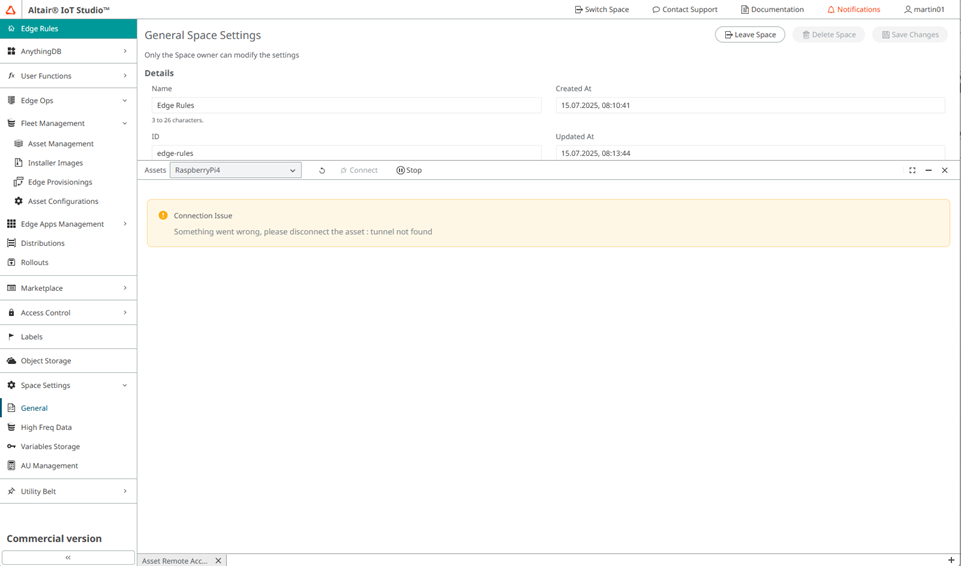
Refreshing the connection status could result in a "tunnel not found" message. In this case, click Stop and then Connect to re-establish a connection.
Figure 9.